Step 3 — Configure Inside RealDrive
Launch RealDrive and from the main screen, press F1 to open the Configuration screen.
RealDrive supports customer-supplied steering wheels, pedals, shifters, and other USB driving controls.
Confirm:
☐ RealDrive launches successfully
☐ Your wheel appears in Windows USB controllers
☐ Steering moves in Windows test screen
☐ Pedals respond in Windows test screen
If Windows cannot detect your hardware, RealDrive cannot configure it.
VR Motion software is designed for USB-compatible steering wheels and pedals. Hardware functionality depends on the manufacturer’s drivers and Windows compatibility.
Estimated Setup Time: 10–15 minutes
Configure your steering wheel, pedals, and shifter before starting RealDrive training.
Follow these steps to connect, test, and customize your driving controls.
Before starting RealDrive:
Open Windows and confirm your controller is working:
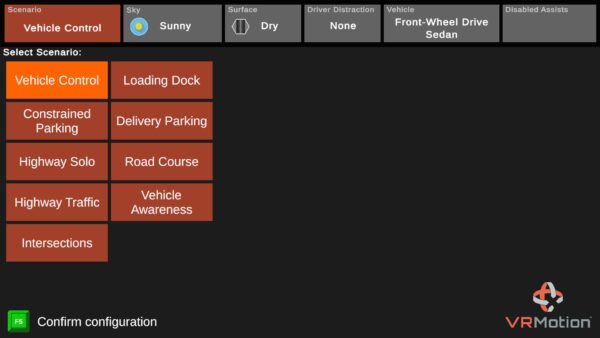
Launch RealDrive and from the main screen, press F1 to open the Configuration screen.
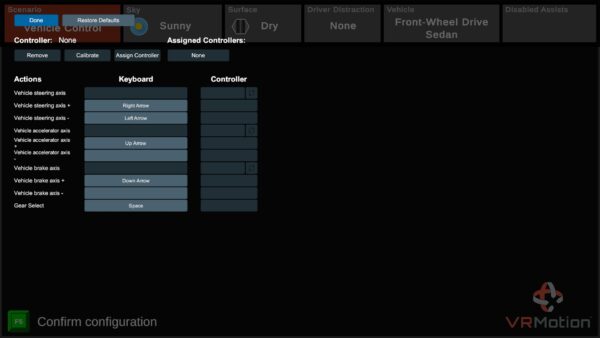
Settings → Controls → Configure Device
Follow the on-screen instructions:
Click Done to save your control setup, so RealDrive automatically loads your configuration next time.
Try:
Try:
Adjust:
If your controls are not detected, contact VR Motion Support and include:
Please confirm that you have tried this first
☐ Restart computer
☐ Disconnect/reconnect USB
☐ Confirm wheel manufacturer software works
☐ Confirm Windows detects steering movement
☐ Restart RealDrive